


Jump to a section
Gemini custom instructions can save the preferences you keep repeating: shorter replies, a useful summary format, or how you want an answer organized. Google's September 2 update expands those preferences across supported Workspace surfaces. The useful move is to save how you work, not every fact about the job you are working on.
“Keep it brief.” “Put the next action first.” “That price was only for one customer.” These are different kinds of instructions. Saving all three as permanent defaults can create a problem instead of removing one.
Here is how to separate them, check access, and write preferences worth keeping.
Download the instruction planning sheet. It includes filled-in examples and blank rows. Open it in Sheets, Excel or another spreadsheet app. It is a planning sheet, not a Gemini import file.
The September Workspace update
What changed
Google announced the expansion on September 2, 2026. It names Ask Gemini in Drive and Chat, plus the Gemini side panels in Gmail, Sheets and Slides. Saved instructions were already available in Docs; this is an expansion, not the invention of custom instructions.
The rollout can take up to 15 days. An announcement does not mean the setting has reached your account.
You can also ask Gemini to remember a preference in the conversation. Google's example below shows it asking for confirmation before saving the instruction.
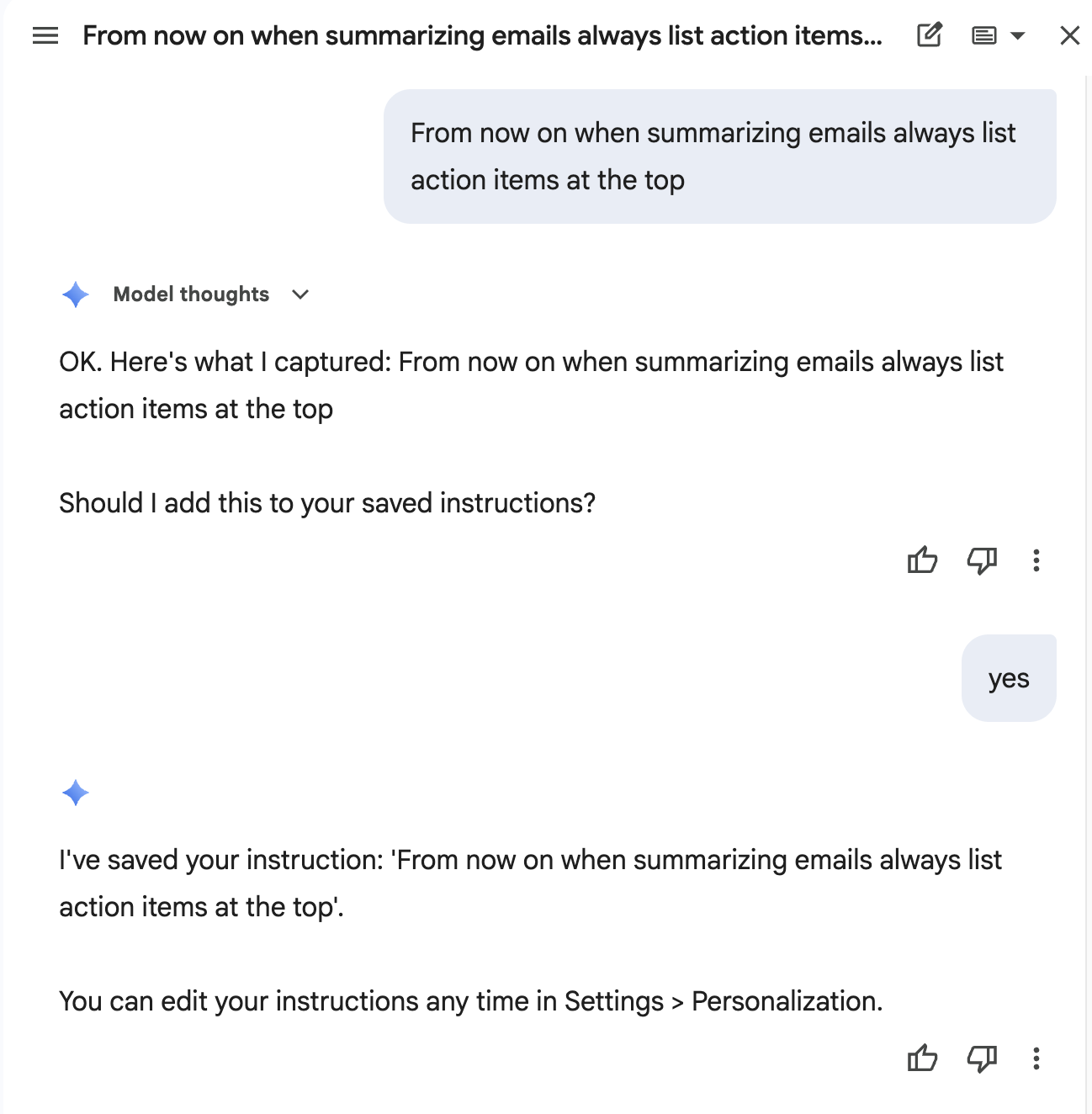
Chrome Unboxed's earlier coverage identified the everyday frustration: having to restate your writing preferences. Outwood's September digest shows the expansion in a work setting. Neither establishes how much time your business will save.
Access and cost
First, check the Google account you actually use for work. Google's help page explicitly says that Workspace instructions do not sync with instructions in Gemini Apps. Changing preferences at gemini.google.com is not the same as changing them inside Gmail or Docs.
There is also a documentation mismatch worth knowing about. The announcement describes availability for Workspace customers with access to the named surfaces. The help page, checked September 6, still says US and English only, and lists Gemini Beta access for work or school accounts. Personal-account requirements differ again. We cannot confirm Canadian availability or universal access from those pages. Check the setting, or ask your Workspace administrator, before upgrading.
For budgeting, Google's US pricing page lists standard rates of US $7 for Business Starter, $14 for Standard and $22 for Plus per user per month with an annual commitment, alongside promotional discounts. Starter lists Gemini in Gmail; Standard lists broader Workspace access. Those prices are not a guarantee that personalization is enabled. Check your billing terms and eligibility directly. This guide requires no paid automation connector or additional setup service.
A practical example
Imagine you prepare a project summary in Docs, then draft the customer email in Gmail. In both places, you want the next action first, plain language and no invented commitments.
The reusable preference is the way the answer is written. The customer's chosen product, current quote and available installation dates belong in the specific task and its approved source material.
| Save as a preference | Supply for this task only |
|---|---|
| Start a project summary with the next action | The next action for this particular project |
| Use the currency stated in the source | The current amount and currency on this quote |
| Keep customer drafts short and direct | This customer's question and relevant correspondence |
| Flag missing facts instead of filling them in | The approved scope, price and availability |
This is our suggested separation, not a recorded Gemini result. It keeps a temporary fact from becoming a standing instruction for unrelated work.
Limits and alternatives
Saved preferences are guidance, not a permission system or a guarantee of accuracy. They do not authorize sending email, changing a price or making a booking. Review the draft and the source facts yourself.
If the setting is missing, keep a short instruction in a document and paste it into the relevant task. That is a manual fallback, not an automation. If a rule applies to only one customer or document, put it in that task instead of your general preferences.
Three instructions worth adapting
Start small. Save one instruction, check how it affects two different tasks, and add another only when it solves a repeated problem. The examples below are original starting points for you to adapt, not promises of identical output.
When I ask you to draft a customer email, answer their main question first. Use plain language and short paragraphs. End with one clear next step. Keep prices, dates and promises exactly as supplied in the source; if a needed fact is missing, identify it for me instead of making it up.
The opening condition matters: “When I ask you to draft a customer email.” Without it, an email-writing rule might also distort a report, a brainstorm or a spreadsheet explanation.
When I ask for a project summary, use three sections: Next action, Confirmed facts, and Open questions. Under Next action, include an owner and date only when the source provides them. Under Confirmed facts, identify the source document or message. Keep assumptions out of the confirmed-facts section.
This format makes missing information visible. It does not prove that a source is correct or current; you still need to check it.
When I ask you to explain a table or a set of numbers, begin with the decision the numbers help me make. State the period, units and currency given in the source. Separate totals from estimates. If those details are missing, say what I need to clarify before relying on the calculation.
Do not save “Always use Canadian dollars” if you work with both US and Canadian quotes. A rule to preserve the source currency is safer than one that silently overrides it.
Why “use bullet points” often needs more detail
In an August 20 discussion, a Gemini user wanted an outline with explanatory paragraphs, not a flat list. Their short instruction was not producing the intended structure.
A reply suggested providing an example of the desired output. The useful lesson is to name the structure you want, rather than a vague style. That is why the project-summary example above names three sections and describes what belongs in each. The thread does not prove the new Workspace feature will follow every instruction.
How-To Geek's coverage of the earlier Docs feature also raised the issue of preferences affecting unrelated documents. Our recommendation is to make saved instructions conditional and keep changing project facts out of them.
Add one instruction in the right place
For an eligible account, Google's documented desktop path is:
- Open Gmail, Docs or Slides in the account where you want the preference.
- Open Ask Gemini.
- Go to Menu → Settings → Personalization.
- Select Add, paste one instruction, then Save.
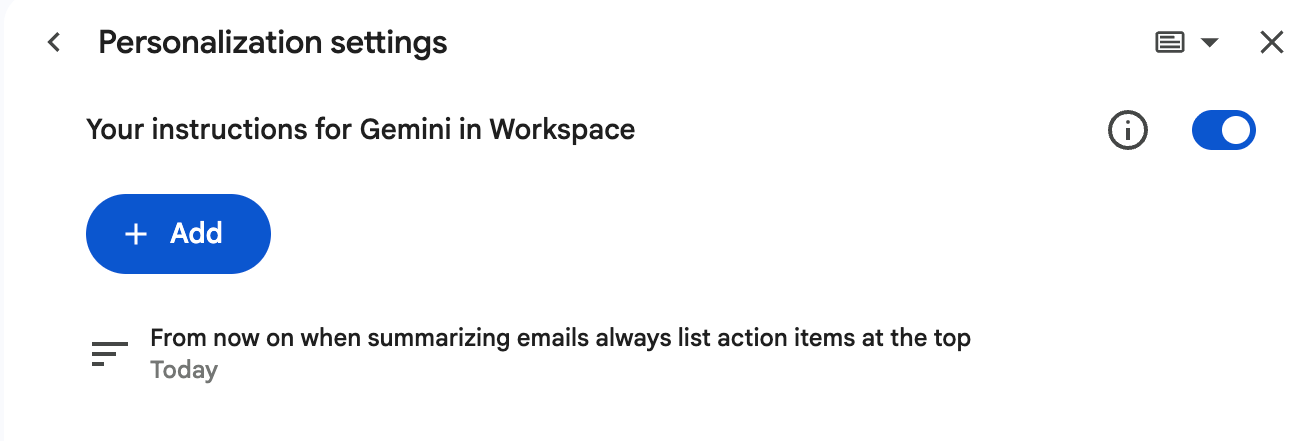
Below a response, Google says Sources → Personalization settings can show the instructions used. Check the actual answer too: a listed instruction is not evidence that every part was followed correctly. Ask Gemini in Chat uses a different management path; follow the help page for that surface.
Do not place passwords, customer records, confidential prices or a temporary discount in a reusable instruction. Use your organization's approved data-handling process for the source material instead.
Check the effect before you keep it
In Google's demonstration, a later email summary starts with action items, matching the saved preference shown above.
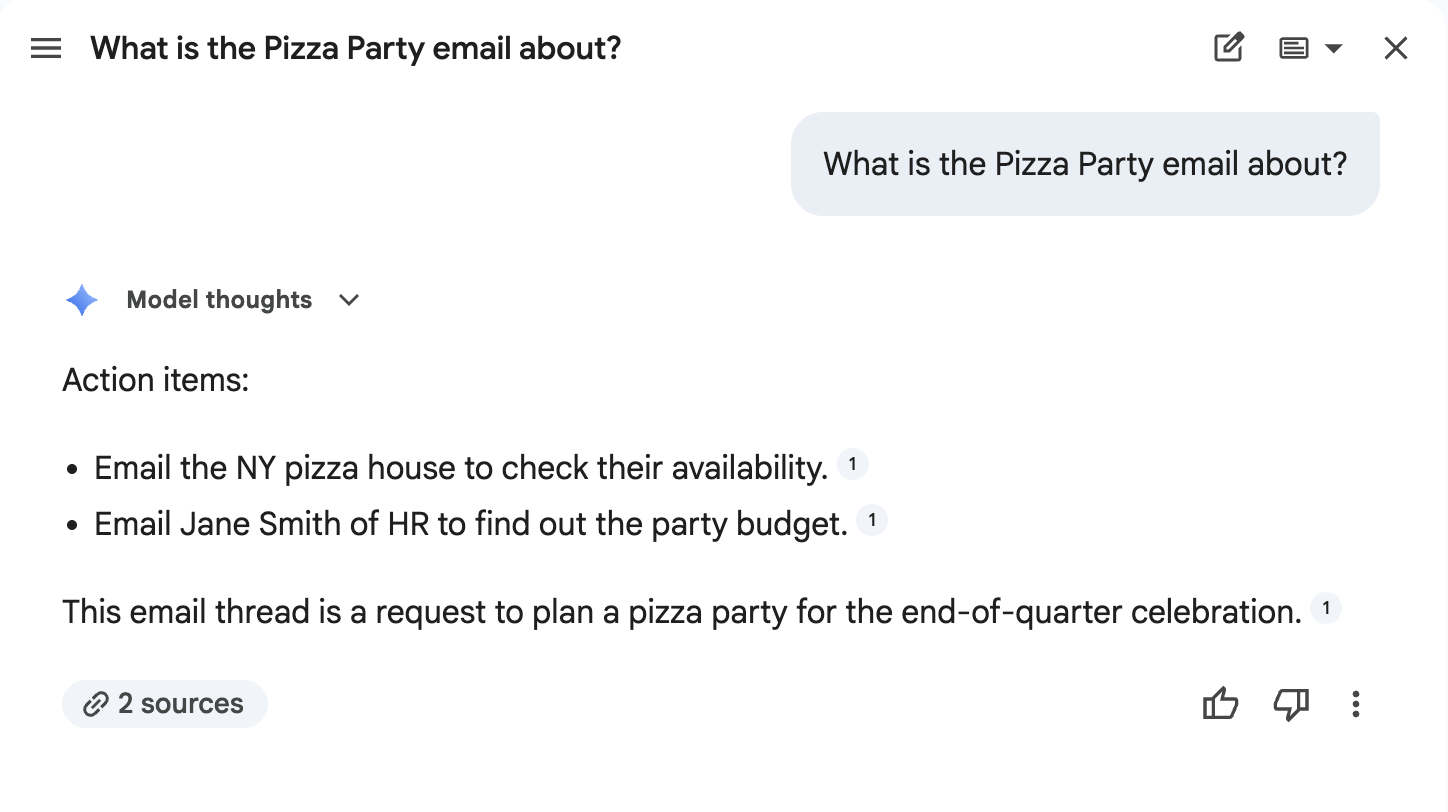
Use fictional information for this check. You are looking for a useful preference, not testing on a customer.
| Try this | What to inspect |
|---|---|
| Ask for a short project summary | Are Next action, Confirmed facts and Open questions separate? |
| Leave the owner or deadline unspecified | Does the answer flag the gap instead of inventing it? |
| Ask for an unrelated email draft | Has the project-summary format leaked into it? |
| Give this task an explicitly different format | Does the output meet the current request? |
Record the result in the planning sheet. If a preference makes unrelated work worse, narrow its wording or turn saved instructions off while you revise it. Google's help page says turning them off retains the saved list; deletion is permanent.
The decision is simple: keep a preference only when it improves the work you actually repeat. Do not keep adding rules to compensate for an unclear task, missing source or feature your account does not have.
Saved writing preferences help with drafts you ask for. If you need customer enquiries to trigger replies and follow-up without opening a chat each time, that is a separate system. Our lead-response guide explains the handoff, and Instant Lead Response describes the installed service.
Sources and limits
Checked against the Google announcement, help and pricing pages on September 6, 2026. Their availability descriptions differ; confirm the setting in your account before paying. The instruction examples and worksheet are original editorial examples, not recorded Gemini outputs.
Updated September 6, 2026. Examples are not client results.
Sources and research notes (7)
- Custom instructions for Gemini in Workspace now available in more appsGoogle Workspace Updates
September 2, 2026 announcement, checked September 6. Names the expanded surfaces and a rollout of up to 15 days.
- Customize Gemini in Workspace's responses with your instructionsGoogle Workspace Learning Center
Checked September 6, 2026. Documents separate Workspace settings, management controls and response-source checks. Its US/English and beta-access requirements are narrower than the launch announcement.
- Google Workspace pricingGoogle
US pricing checked September 6, 2026. The annual-commitment view lists standard monthly per-user rates of $7, $14 and $22 alongside temporary promotions. A plan's Gemini access does not establish this feature's rollout in a specific account.
- Gemini in Google Docs now supports persistent custom instructionsChrome Unboxed, Robby Payne
May 6, 2026 independent coverage of the earlier Docs feature. Useful context for repeated style instructions, not evidence of September availability or measured time savings.
- Gemini in Google Docs lets you set custom instructions that are actually usefulHow-To Geek, Viraj Gawde
May 5, 2026 independent reporting. Raises the risk of broad preferences carrying into unrelated work. Its uncertainty about scope is not used as product documentation.
- AI Pro update: September 2026Outwood Tech Hub
September 4, 2026 education-focused digest. Places the expansion in a current work context; its education-licence guidance is not applied to business accounts.
- Help with custom instructionsReddit r/GeminiAI, u/Rpc-9915
August 20, 2026 user question about specifying an output format in Gemini. It concerns the Gemini app, not a test of the new Workspace release. Individual experience, not a reliability benchmark.
Vendor claims, independent reporting and our recommendations have different evidence limits. Linked material is attributed to its publisher; no endorsement is implied.